
NEED THIS FEATURE?
Now included in GROW Annual - upgrade today.
Contact Sales for Enterprise pricing based on the size of your team.
Do you use spreadsheets to group people into arrival and departure transfers based on their arrival and departure flights and always worry that you haven't accounted for everyone?
Now we have a solution to that problem: Transfer Windows!
You'll be able to:
- charge PER PERSON or PER TRANSFER, and add the cost to the invoice as an Add-On
- add as many transfers (shuttles, limos, buses, etc) as you need on the trip
- add as many blocks as you need
- allocate people on the trip to those transfers
- see clearly when you've filled your transfers - so you know if you've got capacity for more people
- see clearly when you've allocated all your people - so you know if you need more or less transfers
-
purchase a Custom Role for an external Travel Agent/Supplier or Group Leader to help Manage Transfers
Transfer Windows Explained - Product Workshop
COMING SOON
This is an early adopter feature - so please report any issues as soon as you encounter them.
How to Use Transfer Windows
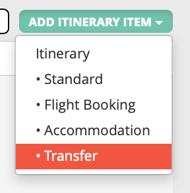
Once you've purchased a license. You'll find a new option under MANAGE HIGHLIGHTS & ITINERARIES when you click to ADD ITEM.
Simply select the type of Enhanced Itinerary Item to set up an Transfer Item:
Select a Transfer Type to link this to the Flight data you are collecting via Forms.
- Arrival
- Departure
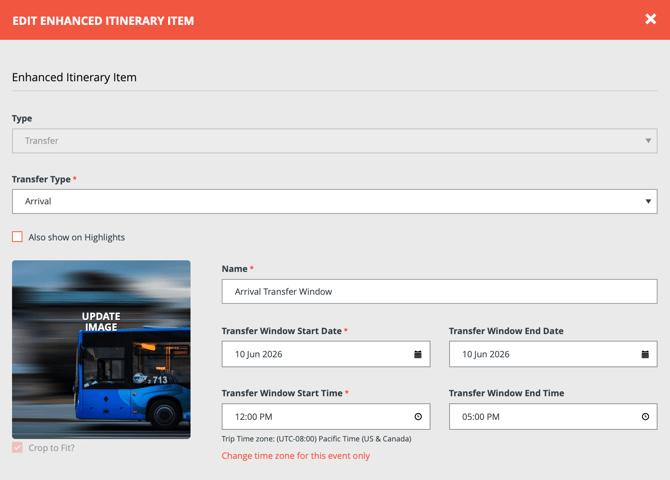
The name and Transfer Window date and times will show on the Trip Page Itinerary (and you still have the option to "Also show on Highlights").
Select the ITEM PRICE to add this transfer service as an add-on.
Use this for optional Pre and Post night extras to drive up revenue on your Trips.
Just like per-person add-ons, once responses have been received, the price can no longer be changed. This item will be included in configured reports and exports from TripCRM.
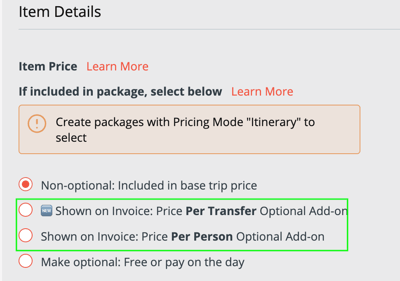
-
Shown on Invoice: Price Per Transfer Optional Add-on
Regardless of how many people are in the Invitation Group, they only pay for the extra cost of the Transfer
-
Shown on Invoice: Price Per Person Optional Add-on
Each person in the Invitation Group will be charged the extra cost of the Transfer as an optional add-on.
Typically a tour will have an included Transfer Window, so we recommend using that time range. Then you can charge for special transfers that fall outside that window.
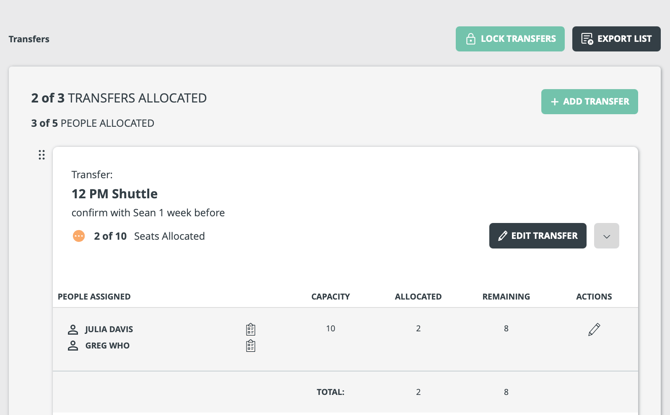
You can then manage Transfer allocation and know exactly when you're ready to lock your Transfers and export the allocations to send to the supplier that does the actual pickups.
-
Colored Indicator
We’ve released the ability to allocate people to Transfers, similar to allocation blocks, and to link transfers to the flight data collected through Tasks & Forms.
We’re now also displaying a colored indicator to help you quickly see who is arriving or departing within the transfer window, or outside of it.
How to Link Flight Information to Transfer Windows
When creating the Flight task form to collect flight information, make sure the API Field Names set for the matching form fields are:- For Arrival flights:
-
ARRIVAL_DATE_TIME
- NOTE: this must be a Date + Time picker
-
ARRIVAL_AIRPORT_CODE
-
ARRIVAL_AIRLINE_CODE
-
ARRIVAL_FLIGHT_NUMBER
-
-
For Departure flights:
-
DEPARTURE_DATE_TIME
- NOTE: this must be a Date + Time picker
-
DEPARTURE_AIRPORT_CODE
-
DEPARTURE_AIRLINE_CODE
-
DEPARTURE_FLIGHT_NUMBER
-
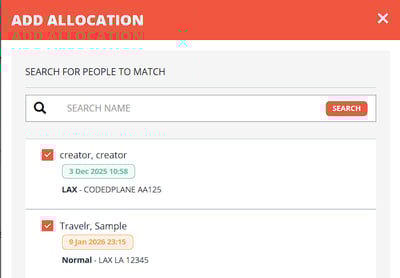
When done correctly, the flight information will appear in the allocation popup to assist you in allocating people to the right transfer.
Export File Format
When clicking to export, the downloaded file will include these columns.
-
Transfer
-
The label for this Transfer block
-
-
Full Name of Traveler
-
Full name using the account preference for format - this could be first name first or last name first
-
-
Flight PNR
-
API Field Name: PNR_RECORD_LOCATOR
-
-
Phone Number
- From the Profile and Registration Form
-
Planner Note for this Traveler
- HTML formatting will be removed
-
If the Transfer Type is "Arrival", these field values are included:
-
ARRIVAL_DATE_TIME
-
ARRIVAL_AIRPORT_CODE
-
ARRIVAL_AIRLINE_CODE
-
ARRIVAL_FLIGHT_NUMBER
-
-
If the Transfer Type is "Departure" , these field values are included:
-
DEPARTURE_DATE_TIME
-
DEPARTURE_AIRPORT_CODE
-
DEPARTURE_AIRLINE_CODE
-
DEPARTURE_FLIGHT_NUMBER
-
Who can Manage Transfers?
1. Team Members
- Team Members can "+ADD TRANSFER" (green button) by naming the room blocks
- Only Team Members can "EDIT BLOCK" (black button); Custom Roles typically do not have the access.
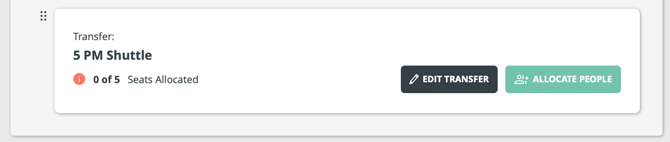
2. Custom Roles with limited access
-
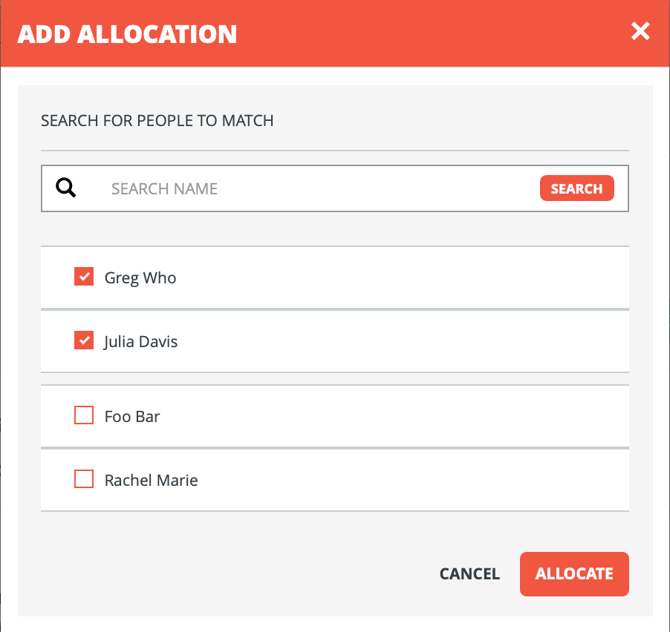
- You can purchase a role that can only "ALLOCATE PEOPLE" (green button) and in the popup window: search, select Traveler names and "ALLOCATE" (red button) them into to the transfer
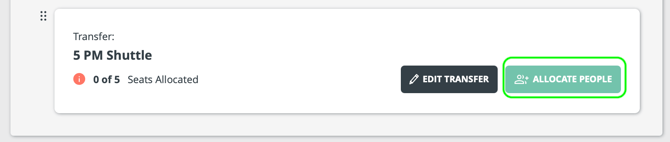
NOTE: How this interacts with Co-Planners, Custom Roles or other Group Leader type roles:
If you want these roles to ONLY have access to Transfers, then it's included in the cost of this feature.
If you want these roles to have access to MORE than just Transfers, then there is an extra fee for that -- see #3 below -- Custom Role.
3. Custom Roles (purchase required if desired)
If you want some users to be able to access ONLY this feature, and you don't want to pay full Team Member user seat licenses for them, then Custom Role is your best choice.
You will need to define what you want them to see, access, and edit in YouLi.
Contact us if you want to purchase a set of Custom Roles.