
📚Global Content Library Features
Manage your Content Library to keep things organized and see how items are being used.
In the Library
You can find your Library under I'M PLANNING > LIBRARY
- Delete items from the Library
- Edit folder names
- Rename items (and edit the descriptions)
- Move items between folders to better organize your content
- Drag and Drop to other folders in ADD TO LIBRARY as well
- See how many times your item has been USED so you know you're using the right one
- Editing a copied item will not affect the original item in the library unless you have the synced changes feature.
Add Items TO/FROM Library in Trip/Template
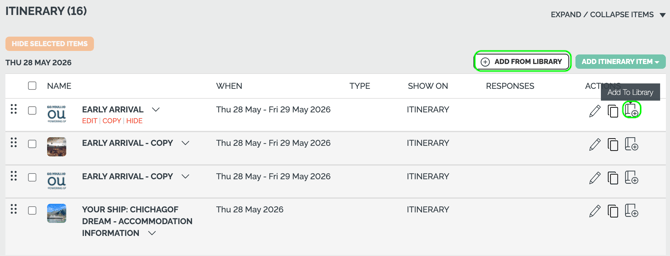
- ADD FROM LIBRARY
- Select Highlights or Itinerary items from the library to add to your current Highlights or Itinerary.
Note: When a change is made to an item in the Content Library, any children items that are synced will automatically be updated based on the change.
- ADD TO LIBRARY
- Add Highlights or Itinerary items to the library for future use.
- Create a new folder or subfolder to organize your content.
Note: When you add items to folders, please make sure to select the folder and click ADD TO FOLDER, otherwise, the items will be added to the last-level folder or library.
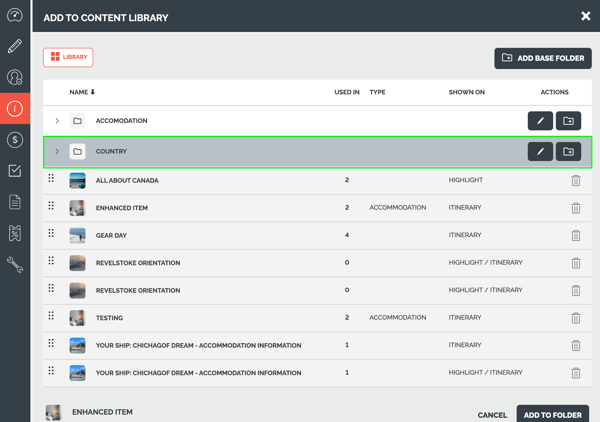
NOTE: While you can add a base folder from the Library, you must put something into it right away, otherwise it will disappear upon refreshing the page:
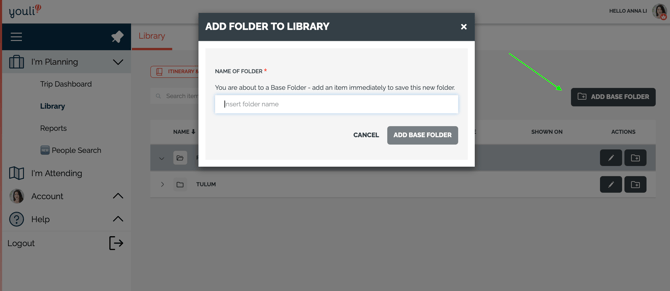
Therefore it is better to follow the instructions above, so that the folder is created and item(s) are put into it at the same time.
User Access
Co-Planners, Affiliates and Trip Coordinators cannot view or edit your Content Library. So you can safely invite them to collaborate with you without fear that they will made changes to your library.
By default Team Members and Team Admins can Edit the Library if they have "Grant access to all trips" selected. They can also edit Templates.
To restrict access for certain team members you need Custom Roles
Here is the way the role based access control impacts the user's ability to edit Library
|
Button / Action |
Required Permission |
If |
|
Edit Template |
|
Can only CREATE TRIP FROM the visible Templates |
|
Dashboard Library |
|
Menu option is not shown |
|
Add TO Library |
|
Button is disabled. On hover, show tooltip: "You do not have permission to Edit Library" |
|
Add FROM Library as Synced |
|
User cannot edit the item unless it is made unique. They have the ability to MAKE UNIQUE |
|
Add FROM Library |
|
User CAN edit the item and those changes will not apply to the Library item. |
|
Edit Library Item (in modal) |
|
Button to edit in Library is disabled. On hover, show tooltip: "You do not have permission to Edit Library" |
Synced Content Library (Sync Changes vs Unique Items)
Available plans:
- Enterprise Extra - contact Sales
- Works well with Global Image Library