---
title: New Features - MAJOR Release 2.221 - Trip Page Hero section configuration and Waitlist General Availability
description: Waitlist is now general availability, Configurable Trip Page Hero Section, Booking Add-ons enhancement, PDF Generation in bulk
---
[Skip to content](https://support.youli.io/new-features-major-release-221-may-2026#main-content)
[Open Ticket](https://support.youli.io/kb-tickets/new?hsLang=en) [Customer portal](https://support.youli.io/feature-request-tickets-view?hsLang=en)
[](https://support.youli.io/?hsLang=en)
- [Pricing](https://go.youli.io/pricing)
- [Book Demo](https://go.youli.io/youli-demo-videos)
- [Blog](https://blog.youli.io/)
Open main navigation
Close main navigation
- [Pricing](https://go.youli.io/pricing)
- [Book Demo](https://go.youli.io/youli-demo-videos)
- [Blog](https://blog.youli.io/)
- [Open Ticket](https://support.youli.io/kb-tickets/new)
- [Customer portal](https://support.youli.io/feature-request-tickets-view)
- [Open Ticket](https://support.youli.io/kb-tickets/new)
[Open Ticket](https://support.youli.io/kb-tickets/new?hsLang=en)
How can we help you?
- There are no suggestions because the search field is empty.
1. [Help Center](https://support.youli.io/?hsLang=en)
2. [New Features](https://support.youli.io/new-features?hsLang=en)
3. [Recent Releases](https://support.youli.io/new-features?hsLang=en#recent-releases)
# New Features - MAJOR Release 2.221 - Trip Page Hero section configuration and Waitlist General Availability
## Waitlist is now general availability, Configurable Trip Page Hero Section, Booking Add-ons enhancement, PDF Generation in bulk, and more
### See All Updates
[New Features Index of Releases](https://support.youli.io/360001148516-new-features-release-notes?hsLang=en) - history of our recent updates
### 🌤️ This is a MAJOR Release
Released: **May 14, 2026**
**That means we are focused on a *few big features***, we also include small improvements and bug fixes that we can.
If you're unsure how to read the notes or how to make the most of YouLi, you can schedule a [1:1 Consulting session](https://support.youli.io/4410822548623-how-to-get-help-from-youli-support?hsLang=en#pay) with one of our experts, and we will walk you through the features and best practices.
### Focus Features in this Update:
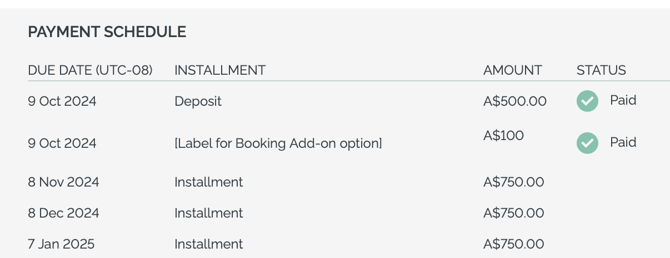
### ➕ Selected Booking Add-on Now Shows in Payment Schedule
Previously when a Traveler selected a Booking Add-on, the amount of that was rolled into the balance.
Now it shows as a special line in the Payment Schedule.
Before it showed as a partial payment on the Balance which was confusing.
NOTE: This is only for [Booking Add-on](https://support.youli.io/how-to-add-travel-insurance-options-required-at-booking-checkout-flow-only?hsLang=en), not for [Itinerary Add-ons.](https://support.youli.io/360001123736-itinerary-highlights-optional-items-add-ons-to-the-invoice?hsLang=en)
*# 9594 - Thanks to Prometour for prioritizing*
### 📝 Waitlist - General Availability
**ALL PLANS**
COMING SOON: New Waitlist registrations will be sent via webhook so that you can automate handling of waitlisted people into your CRM or Email Platform.
[We recommend Zapier for these automations](https://support.youli.io/360001849896-how-to-zapier-creating-your-account-making-your-first-zap?hsLang=en)
[Learn more about using the Waitlist](https://support.youli.io/how-to-add-a-waitlist-package?hsLang=en)
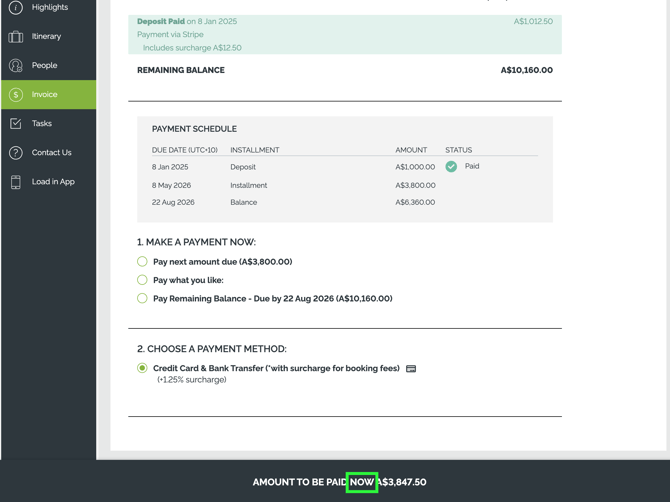
### 💰 Amount to be Paid Now -\> Next
Previously the footer call to action indicated the "AMOUNT TO BE PAID NOW" and this will become "AMOUNT TO BE PAID **NEXT**". As sometimes that amount is due now, and sometimes it's due in the future.
Clicking to the invoice will indicate the due date.
*# 10954 - we heard you that it was confusing, all fixed!! Thanks to Vibrant Women for prioritizing.*
### ❌ Show Canceled Traveler properly on Invoice
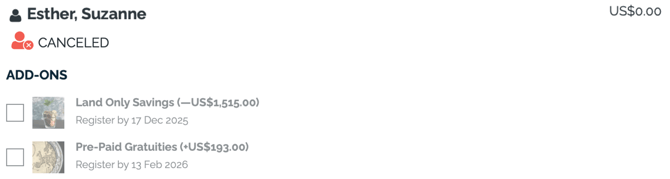
When you've got a single person in an Invitation Group that has canceled, you'll now see them showing properly as CANCELED on the shared invoice.
The package they had selected will not be shown and the add-ons will not be active.
If other members of the group select an add-on, canceled travelers will not be included in the group selection.
To set the canceled traveler's price to $0, set a [personalized price](https://support.youli.io/youli-video-tutorial-how-to-set-a-personalized-price?hsLang=en) (or change their package to a $0 package). This will not be done automatically when setting their status to 'CANCELED'
**NOTE:** This means you do not need to remove canceled people from the invitation group - especially if they have made a payment that is not being refunded.
*# 10868*
### 📎📎 PDF Itinerary & Confirmation
### ➕ Pre and Post Tour Itinerary now Included
The **Itinerary** and **Highlights shown on Itinerary** for Pre and Post tours are now included in the Main Trip Page and the generated PDF.
[Learn more about Pre and Post Tours](https://support.youli.io/how-to-link-pre-and-post-tours-to-a-main-tour-using-tour-series?hsLang=en)
### ➕ Generate Confirmation PDFs for all Travelers from TripCRM
[Included with PDF Confirmation Generation](https://support.youli.io/how-to-create-itinerary-pdf-confirmation-per-person-from-tripboard?hsLang=en)
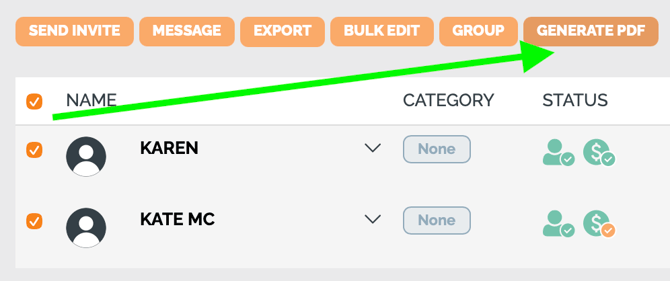
If your account has access to [Generate PDF](https://support.youli.io/how-to-create-itinerary-pdf-confirmation-per-person-from-tripboard?hsLang=en), you'll now have the option to do this from the TripCRM.
1. Select the people (use the box next to NAME to select all)
1. Be sure to use the filters above to make it easier to select the right ones
2. Click GENERATE PDF
3. Complete the form to include the right sections in the PDF
4. Wait for confirmation email (sent to you only) that generation is complete
5. **Generate Individual documents in bulk - just like that!**
6. Travelers can see their PDFs on their Trip Page
### ➕ Removed videos and extra space
If you use Videos in your overview it will no longer take up empty space on the first page of the PDF. 👏
We've also removed the extra white space before the Itinerary shows, making the output even more professional. 👏
### 🌀 Configurable Trip Page Style
Previously, you could only decide between the "Highlight Crds with Lev-navigation" and "Sales Page with Top Navigation" styles for all your trips (all or nothing).
Now you can decide on a per trip basis!
So you can explore different styles and even have different trips use different ones at the same time.
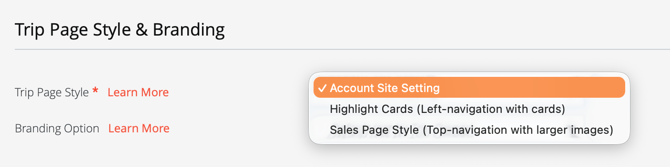
**TIP:** To make sure your Account setting applies consistently, leave that as the selected option on Trips, so if you do want to make a global change, it applies to all Trips.
Only pick the other styles if you want to override the Account Site Setting.
[Learn more about the styles](https://support.youli.io/360001196656-trip-page-landing-page-booking-page-or-sales-pages-for-your-customers#trip-page-style)
### 🌀 Configurable Trip Page Style and Hero Section
Ever wished you could hide the location, or maybe the duration of a Trip from the header?
Ever wanted to turn off the banner image?
Now you can!
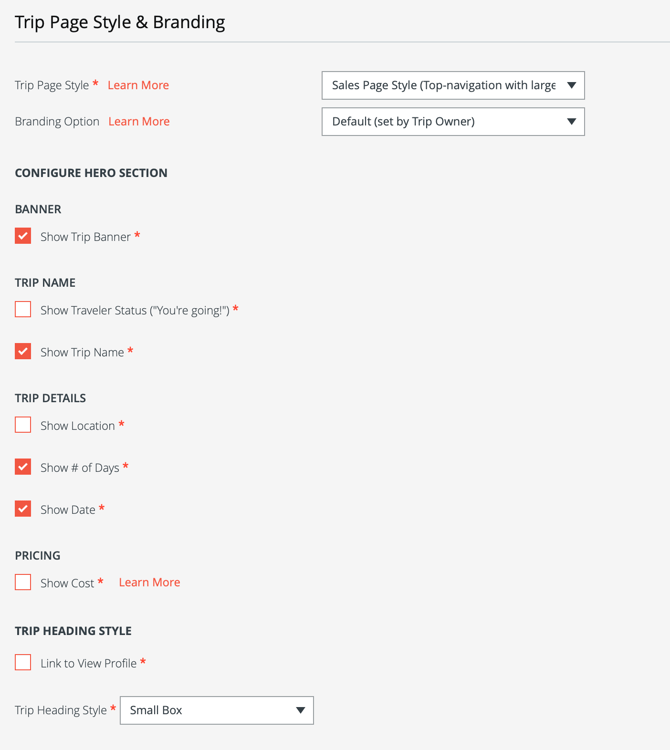
Also change the “**Trip Heading Style**”
- **Link to View Profile** - if you love the shortcut, keep it, if not, turn it off here
- **Trip Heading Style** Options:
- “Use Trip Page Style” - choose this to stay consistent with the selected Trip Page Style
- “Full width box” - choose this to stretch the box to match the banner image (default on Sales Page Style)
- - “Small box” - choose this to shrink the box down (default on Highlight Cards style)
- NEW STYLE OPTION COMING SOON
**TIP:** Want to make a consistent style? Set up at the Template level and be sure to copy Trips from that Template.
If you want to update many existing Trips at once, we can [support with a small support fee.](https://support.youli.io/4410822548623-how-to-get-help-from-youli-support?hsLang=en)
### 🌇 Image Cache Busting Option
**ALL PLANS**
Important for accounts with [Global Image Library](https://support.youli.io/managing-images-per-trip-or-per-account-global-image-library?hsLang=en)
If you **upload an image with the same filename,** but you still see the old one, click PURGE CACHE to clear out the server side cache so the new image will load.
You might still need to clear local image cache on your browser.
*# 11064*
### SPONSORED FEATURES
### 🔢 Faster Flight Booking Searches
Previously some ticket searches would time out. Now your PNR and ticket number searches return quickly.
### 🔢 Sky Promo Banner - make it clear how to Search and Book Flights
Many new enhancements allow you to manage the experience when promoting the Sky (Flight Search and Book):
- Full width banner
- Configure the background image
- Configure the settings per Trip to control the message at a more granular level
- Configure the Domestic and International Booking Fees added per Trip
- The entire promo section is now clickable to redirect to Sky to search for flights
*# 11083, 10957, 11095, 11096,*
### 💪🐞 Bugs & Enhancements
Thanks to everyone who submitted issues, we love making things work!
- 🐞 11100 - Accessibility outline was showing for all users and should only show for users who need it. FIXED!
- 🐞 10990 - Now when you update the Planner Notes for a library item, they will show in the Library view without a full page reload.
- 🐞 11024 - [Traveler Contact Email](https://support.youli.io/360000531195-how-to-add-a-co-planner-or-team-member-to-a-trip#contact-email) is now being passed to Automated Reminders and set as the proper Reply-To when using that feature.
- 💪 11038 - Logos can now be pulled from the Global Image Library
- 💪 10973 - On the TripBoard: The names of others in the Invitation Group are now shown above the Payments table, to make it clear who the payments are for.
Not scheduled for this release, but [we are working on more things coming soon.](https://support.youli.io/coming-soon-youli-upcoming-roadmap?hsLang=en)
- [Get Started](https://support.youli.io/get-started?hsLang=en#main-content)
- [Checklists](https://support.youli.io/get-started?hsLang=en#checklists)
- [Setting up your account](https://support.youli.io/get-started?hsLang=en#setting-up-your-account)
- [Setting up your Trip Page](https://support.youli.io/get-started?hsLang=en#setting-up-your-trip-page)
- [Video Tutorials](https://support.youli.io/get-started?hsLang=en#video-tutorials)
- [Trip Registration](https://support.youli.io/get-started?hsLang=en#trip-registration)
- [Emails](https://support.youli.io/get-started?hsLang=en#emails)
- [Packages & Installments](https://support.youli.io/get-started?hsLang=en#packages-installments)
- [Payments](https://support.youli.io/get-started?hsLang=en#payments)
- [Adding & Managing People](https://support.youli.io/get-started?hsLang=en#adding-managing-people)
- [Starter Website](https://support.youli.io/get-started?hsLang=en#starter-website)
- [How-To](https://support.youli.io/how-to?hsLang=en#main-content)
- [Technology Partners](https://support.youli.io/how-to?hsLang=en#technology-partners)
- [API](https://support.youli.io/how-to?hsLang=en#api)
- [Reports](https://support.youli.io/how-to?hsLang=en#reports)
- [YouLi Plan Add-ons](https://support.youli.io/how-to?hsLang=en#youli-plan-add-ons)
- [Affiliates](https://support.youli.io/how-to?hsLang=en#affiliates)
- [Payments](https://support.youli.io/how-to?hsLang=en#payments)
- [Video Tutorials](https://support.youli.io/how-to?hsLang=en#video-tutorials)
- [Website Integration](https://support.youli.io/how-to?hsLang=en#website-integration)
- [Mobile App](https://support.youli.io/how-to?hsLang=en#mobile-app)
- [White Label App](https://support.youli.io/how-to?hsLang=en#white-label-app)
- [Account Roles](https://support.youli.io/how-to?hsLang=en#account-roles)
- [Tasks](https://support.youli.io/how-to?hsLang=en#tasks)
- [Packages](https://support.youli.io/how-to?hsLang=en#packages)
- [Highlights, Itinerary & Optional Add-ons](https://support.youli.io/how-to?hsLang=en#highlights-itinerary-optional-add-ons)
- [Invitation Groups](https://support.youli.io/how-to?hsLang=en#invitation-groups)
- [Coupons](https://support.youli.io/how-to?hsLang=en#coupons)
- [Trip Page Menu](https://support.youli.io/how-to?hsLang=en#trip-page-menu)
- [Integrating Cruise Deck Plans](https://support.youli.io/how-to?hsLang=en#integrating-cruise-deck-plans)
- [Managing Trip Dashboard](https://support.youli.io/how-to?hsLang=en#managing-trip-dashboard)
- [Emails](https://support.youli.io/how-to?hsLang=en#emails)
- [Bookings](https://support.youli.io/how-to?hsLang=en#bookings)
- [Managing People](https://support.youli.io/how-to?hsLang=en#managing-people)
- [Registration](https://support.youli.io/how-to?hsLang=en#registration)
- [PDF Confirmation](https://support.youli.io/how-to?hsLang=en#pdf-confirmation)
- [Documents](https://support.youli.io/how-to?hsLang=en#documents)
- [Billing](https://support.youli.io/how-to?hsLang=en#billing)
- [New Features](https://support.youli.io/new-features?hsLang=en#main-content)
- [Recent Releases](https://support.youli.io/new-features?hsLang=en#recent-releases)
- [Past Releases](https://support.youli.io/new-features?hsLang=en#past-releases)
- [Enterprise Clients](https://support.youli.io/enterprise-clients?hsLang=en#main-content)
- [Enterprise Onboarding](https://support.youli.io/enterprise-clients?hsLang=en#enterprise-onboarding)
- [Enterprise-only Features](https://support.youli.io/enterprise-clients?hsLang=en#enterprise-only-features)
- [FAQ](https://support.youli.io/faq?hsLang=en#main-content)
- [Data Security](https://support.youli.io/faq?hsLang=en#data-security)
- [Payments](https://support.youli.io/faq?hsLang=en#payments)
- [YouLi Account](https://support.youli.io/faq?hsLang=en#youli-account)
- [Emails](https://support.youli.io/faq?hsLang=en#emails)
- [Managing People](https://support.youli.io/faq?hsLang=en#managing-people)
- [Packages](https://support.youli.io/faq?hsLang=en#packages)
- [YouLi Subscription Plans](https://support.youli.io/faq?hsLang=en#youli-subscription-plans)
- [Tasks](https://support.youli.io/faq?hsLang=en#tasks)
- [Reporting](https://support.youli.io/reporting?hsLang=en)
- [YouLi User Roles](https://support.youli.io/youli-user-roles?hsLang=en)
- [For Travelers](https://support.youli.io/for-travelers?hsLang=en)
- [Partners](https://support.youli.io/partners?hsLang=en)
- [Upcoming Features](https://support.youli.io/upcoming-features?hsLang=en)
- [Incidents](https://support.youli.io/incidents?hsLang=en)
- [Contact Us](https://support.youli.io/contact-us?hsLang=en)
[](https://go.youli.io)
### Need more help?
Reach out to the YouLi Support team via the **Chat** icon at the bottom-right corner of your screen:
or [submit a Support Ticket.](https://support.youli.io/kb-tickets/new?hsLang=en)
Copyright © 2025, YouLi Travel Pty. Ltd