Available plans:
- Enterprise Extra - contact Sales
- Works well with Global Image Library
This feature currently applies to:
- ✅ Highlights & Itinerary Library
- ✅ Tasks Library
- ❌ Not applicable to Flight Bookings
Enabling content sync allows your team to maintain consistent information across multiple Trips. It's especially valuable when your team has a well-defined process for managing content changes. However, without a clear workflow, enabling sync can be risky, as updates may spread to all linked Trips unintentionally.
What Happens When Sync Is Enabled?
Once sync is enabled, you can choose how items are added from the Library:
- Synced: The item will stay connected to the Library. Any future updates made in the Library will automatically apply to all Trips/Templates using that item.
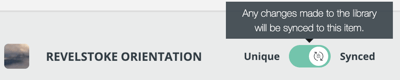
- Unique: The item becomes independent once added. It will not receive future updates from the Library.
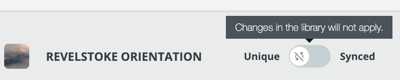
What does a synced item look like on the Manage Highlights & Itinerary page?
- Synced:

-
Unique:

Editing Items in the Library
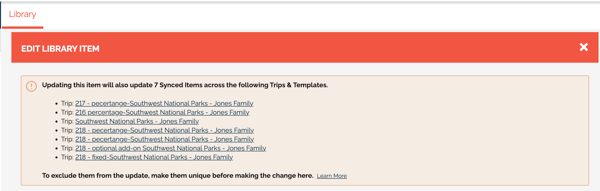
When editing a Library item, YouLi will show you all Trips and Templates that will be updated if you proceed. This ensures you understand the full impact of the change before confirming it, helping avoid accidental or inappropriate updates.
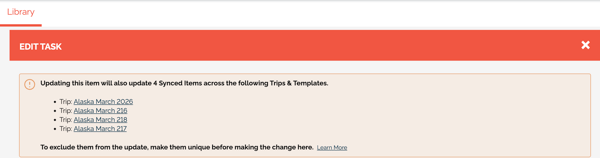
What happens when you try to edit synced items?
-
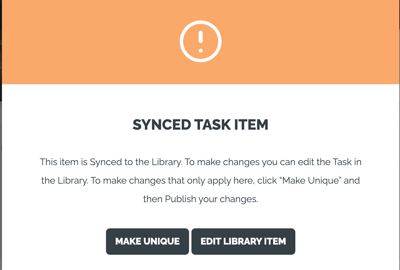
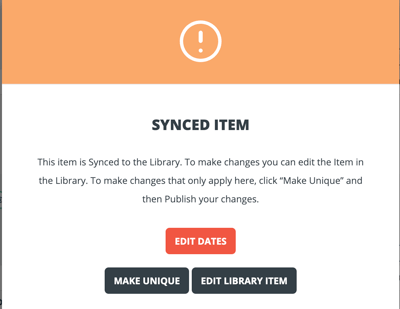
If you try to edit a synced itinerary item that includes a date, you can edit the date itself. However, when editing the content, a pop-up will prompt you to either make the item unique or edit it from the Library.
-
If you are trying to edit a synced Highlight or a synced Task, the pop‑up will also prompt you to either make it unique or edit it from the Library.