
The warning appears in the traveler’s Flight Input Task and can explain the available transfer window, private transfer options, and how to contact your team.
NOTE: This feature is available when Flight Search & Book Sabre Integration is enabled for your account.
Add an Airport to a Transfer
You can configure this warning from:
- A Transfer Itinerary Item on a Trip.
- A Transfer Item in your Library.
Open the Transfer Item
Open the Transfer Itinerary Item you want to update, then find the airport and warning settings.
Select the Transfer Airport
Use Transfer Airport to select the airport covered by this transfer.
For example, select LAX if the complimentary transfer only collects travelers arriving at Los Angeles International Airport.
The warning will only appear when a traveler enters a different airport in their Flight Input Task.
Customize the Airport Mismatch Warning
After selecting an airport, update the Transfer Airport Warning Message.
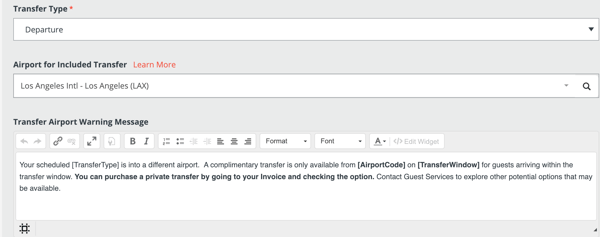
Use the message to explain:
- Which airport is included.
- The available transfer date and time.
- Whether the traveler can purchase a private transfer.
- Who the traveler should contact for help.
The field supports basic rich-text formatting, but images cannot be added.
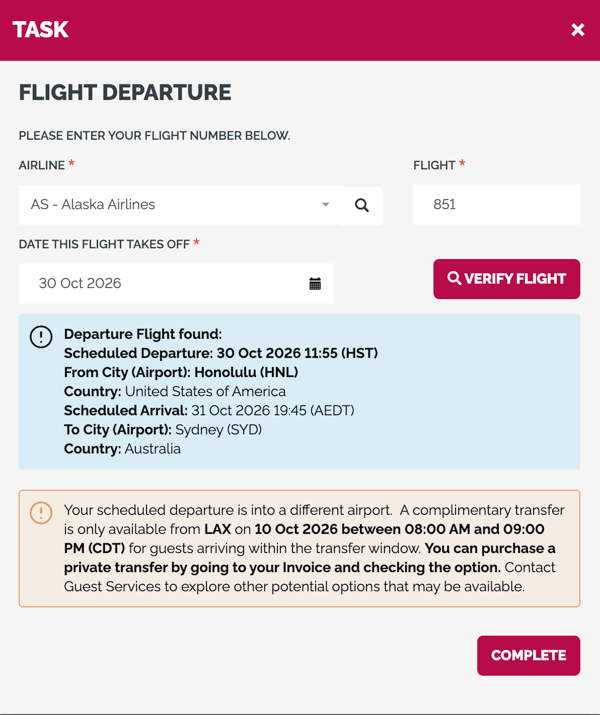
Customize the Transfer Window Mismatch Warning
Use the Transfer Window Mismatch Warning to alert travelers when their flight time falls outside the transfer window configured for that Transfer Item.
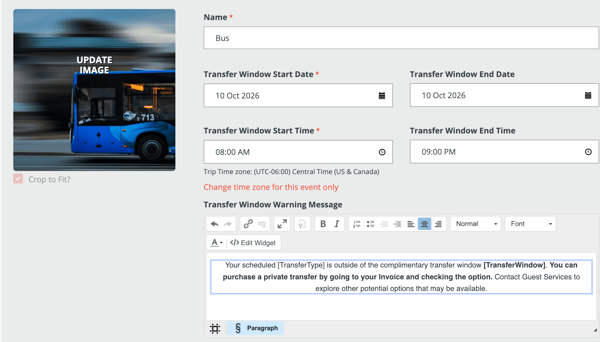
For example, the airport may match, but the traveler’s arrival or departure time is too early or too late for the complimentary transfer.
Add the Warning Message
Open the Transfer Itinerary Item and update the Transfer Window Mismatch Warning Message.
Use the message to explain:
- The available transfer date and time window.
- That the traveler’s flight is outside that window.
- Whether a private transfer can be purchased.
- Who the traveler should contact for assistance.
The field supports basic rich-text formatting, but images cannot be added.
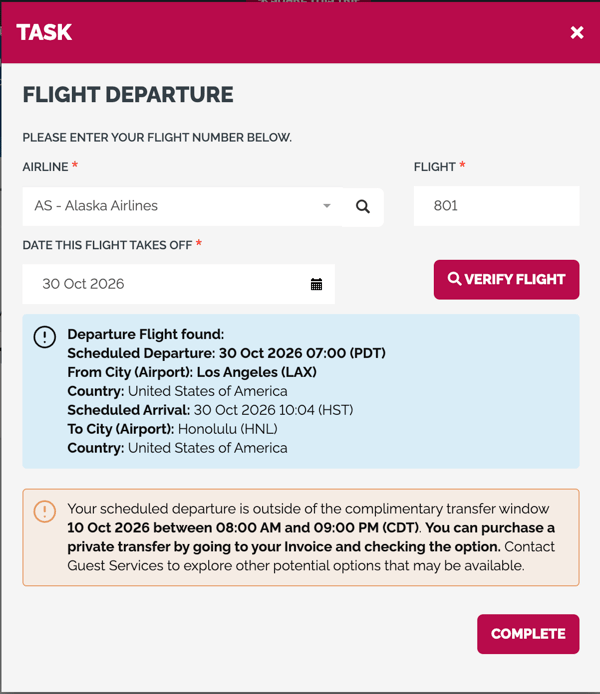
Use Shortcodes in the Warning
Shortcodes automatically insert information from the Transfer Item into the warning.
Enter each shortcode exactly as shown, including the square brackets.
[AirportCode] Displays the airport code selected for the Transfer Item. Example: LAX
[TransferDate] Displays the Transfer Item’s start date without a time. Example: 9 Jul 2027
[TransferWindow] Displays the Transfer Item’s start date and transfer time window using the Item’s time zone. The end date is not included. Example: 9 Jul 2027 between 12:00 PM and 4:00 PM (PDT)
[TransferType] Displays the Transfer Type label in lowercase. Example: arrival
Show Multiple Transfer Warnings
A traveler may be eligible to see more than one Transfer Item or transfer window.
If their airport does not match any of the available transfers, YouLi displays all relevant mismatch warnings together in the Flight Input Task.
Make each warning clear enough to help the traveler understand which date and transfer it refers to.
Use the Warning with Library Items
The Transfer Airport and Warning Message can also be saved on a Transfer Item in the Library.
When the Library Item is synced to a Trip, these settings are included with the synced content.
Update the Library Item when the same airport rules and warning should apply across multiple Trips. If a Trip requires different instructions, review the sync status before editing its Transfer Item.