
Overview
If you use YouLi's Zapier integration, you can automatically send traveler data from YouLi to thousands of other applications, including:
- HubSpot
- Mailchimp
- ActiveCampaign
- Klaviyo
- Salesforce
- Constant Contact
- Google Sheets
- And many more
This includes support for Travelers who join a Waitlist, allowing you to create separate workflows for waitlisted Travelers versus fully registered Travelers.
Common Use Cases
Many trip organizers want to:
- Add registered Travelers to a welcome email sequence
- Add waitlisted Travelers to a separate nurture campaign
- Notify their sales team when someone joins a waitlist
- Track waitlist demand in a CRM
- Trigger follow-up communications when space becomes available
How Waitlist Automation Works
When a Traveler joins a Waitlist, YouLi can pass their registration information to Zapier, allowing you to build custom workflows based on their registration status.
For example:
Registered Travelers
You may automatically:
- Add them to a "Booked Travelers" mailing list
- Send a welcome email series
- Create a CRM contact
- Notify your operations team
Waitlisted Travelers
You may automatically:
- Add them to a "Waitlist" mailing list
- Send a "You've Joined the Waitlist" email
- Create a CRM task for follow-up
- Notify your sales team when demand exceeds capacity
Example Workflow
- Traveler visits your Trip Page.
- The trip or package is full.
- Traveler joins the Waitlist.
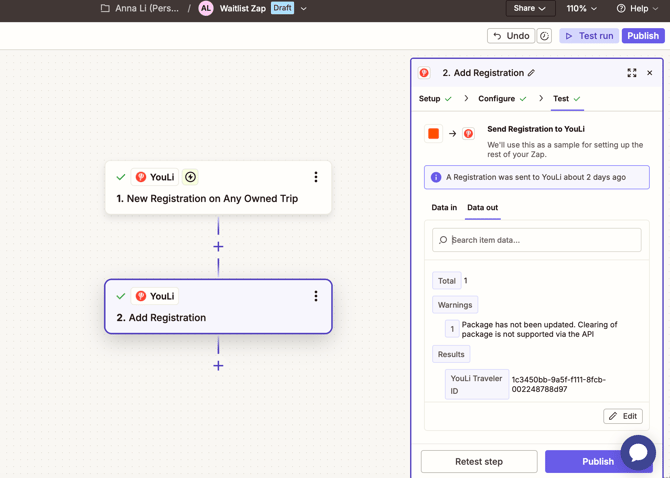
- YouLi sends the registration information to Zapier.
- Zapier routes the Traveler into the appropriate workflow based on their status.
- Your connected apps automatically take action.
Setting Up a Waitlist Automation
Step 1: Connect Zapier
If you haven't already connected Zapier, see:
How-to: Connect Your YouLi Account to Zapier
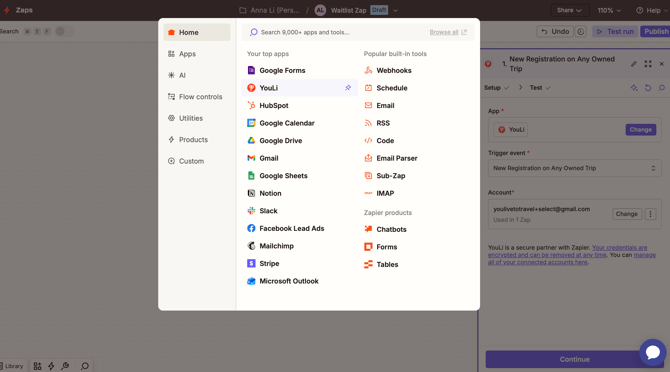
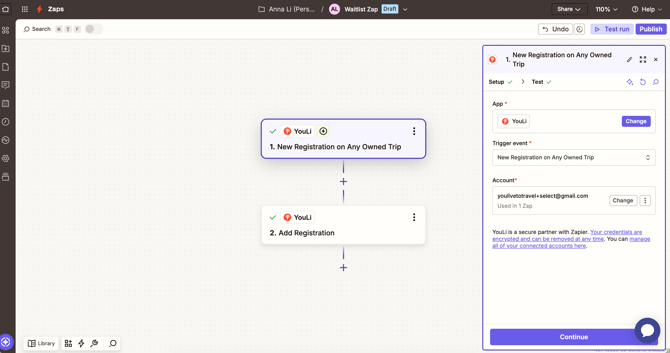
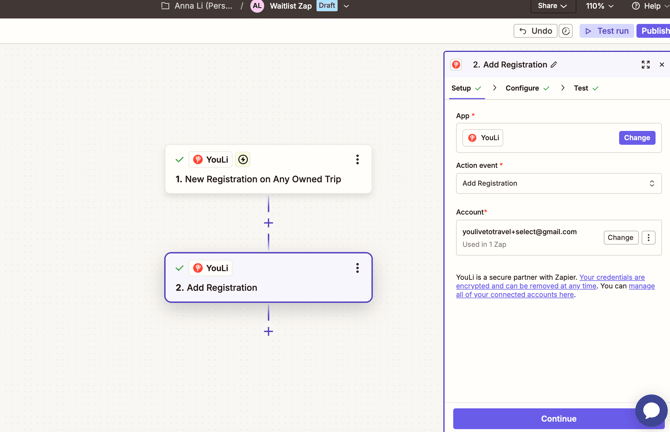
Step 2: Create a Registration Trigger
Create a Zap using:
YouLi → Registration Trigger
This trigger will fire when a Traveler registration occurs.
Step 3: Add Filters (Optional)
Many planners choose to create different automations for:
- Registered Travelers
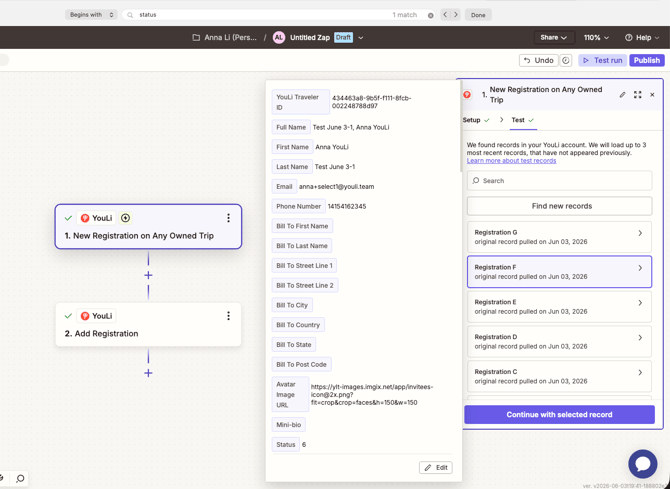
- Status 1 = Registered
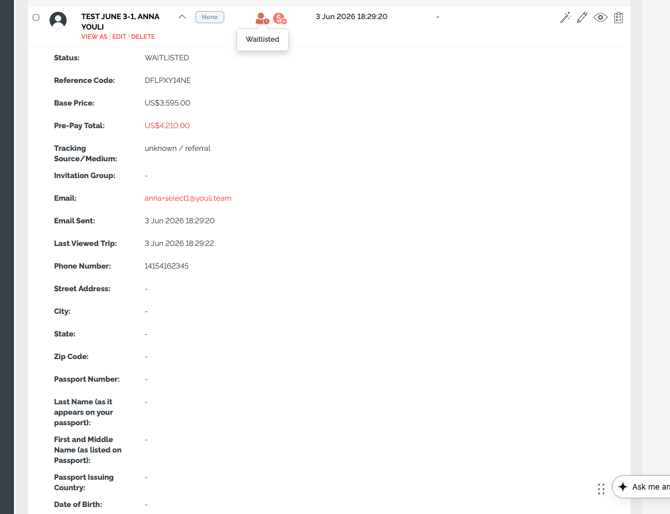
- Waitlisted Travelers
- Status 6 = Waitlisted
This allows different email campaigns, CRM stages, or notification workflows depending on the Traveler's status.
Step 4: Connect Your Destination App
Examples include:
- HubSpot
- Mailchimp
- ActiveCampaign
- Klaviyo
- Salesforce
- Google Sheets
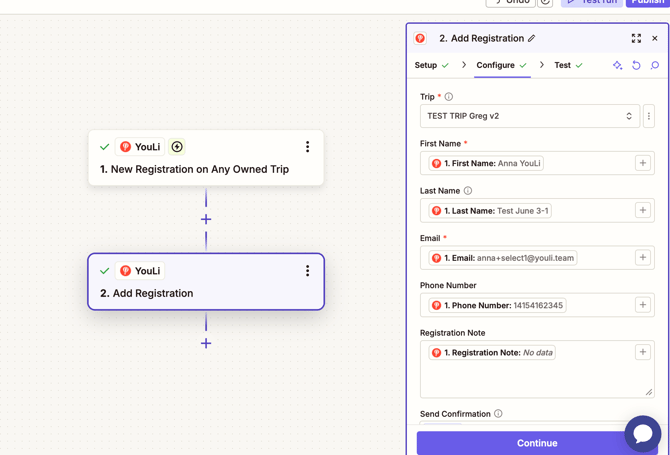
Map the Traveler information into the fields required by your chosen application.
Important Notes
Waitlist is only available when a package or trip is full
Travelers will only see the Waitlist option when
AND
- A package has reached capacity; or
- The trip has reached capacity and
Existing automations may need updating
If you already use Zapier to send new registrations into an email marketing platform or CRM, you may wish to review your workflows and add logic for Waitlisted Travelers.
This allows you to avoid sending booking confirmation or welcome campaigns to people who have not yet secured a spot.
Frequently Asked Questions
Can I send waitlisted Travelers to a different email sequence?
Yes.
Many planners create a separate automation that adds waitlisted Travelers to a dedicated email list or nurture campaign.
Can I notify my team when someone joins a waitlist?
Yes.
Zapier can send notifications to email, Slack, Microsoft Teams, CRMs, and many other systems.
Can I track waitlist demand in my CRM?
Yes.
Many planners create a separate CRM stage, tag, or list specifically for waitlisted Travelers.
What if I need help setting up my automation?
If you need assistance designing your workflow, contact Support or your Account Manager.
Our team can help review your use case and recommend best practices for your CRM or email marketing platform.