
With the right YouLi plan, you can add different Users to help plan your trips. This guide explains how to -- as a Team Owner -- add Team Admins, Team Members, Co-Planners, and Trip Coordinators to either your ACCOUNT or individual TRIPS.
NOTE: Refer to the Pricing Comparison page for details on which plans get what kind of roles.
🙋 First, Determine the Right Role for the Person to be Added
Before adding a user, ask yourself:
Are they a part of your team/company?
-
If yes, then they're an internal user, and should have access to all trips owned by the Team Owner.
Or, are they helping with just one Trip?
-
If yes, then they're likely an external user, and should only have access to specific trips.
NOTE: Read more about all user roles and access levels here: Understanding YouLi Roles & Access Levels (Team Roles & Trip Collaborators)
📥 Adding a Team Member/Admin (Internal User) to an Account
-
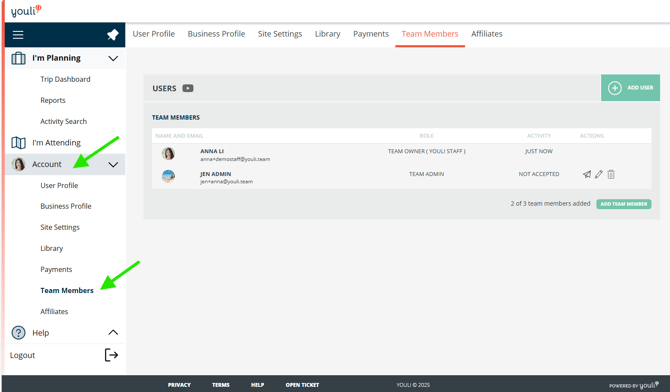
Go to ACCOUNT > TEAM MEMBERS
-
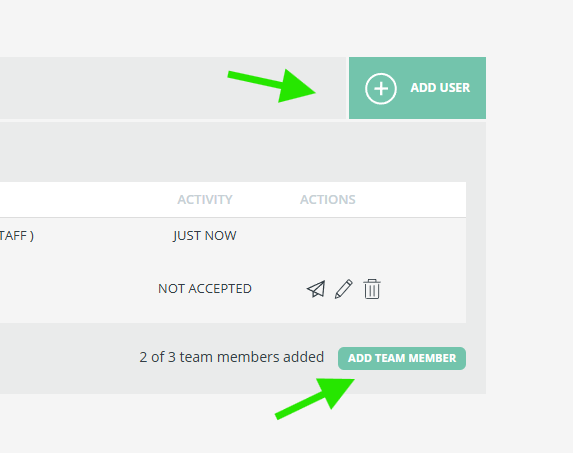
Click on '+ ADD USER' or ADD TEAM MEMBER (they both open the same popup window)
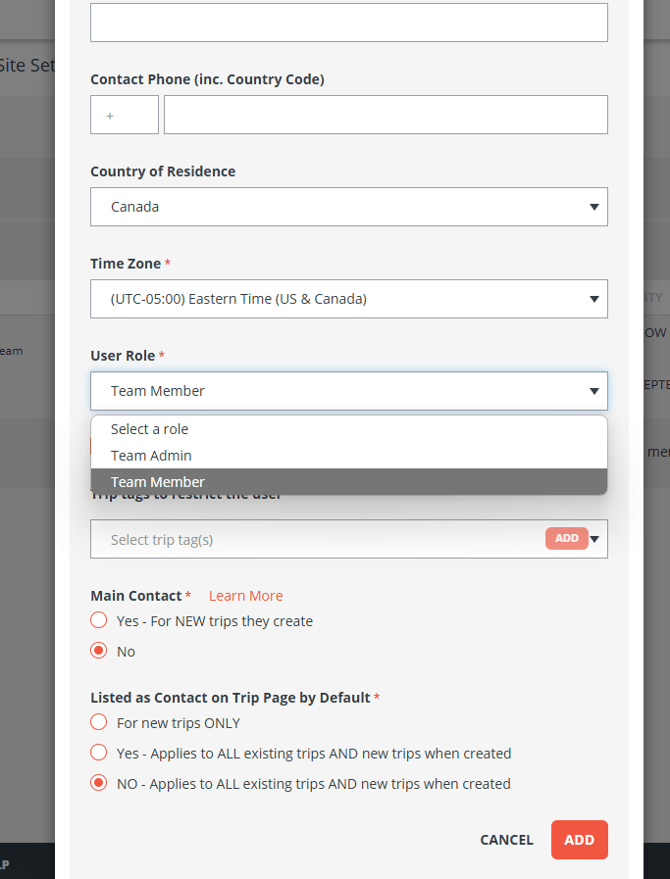
- Fill out the ADD USER popup window
-
- User Role: read this article to see the difference between Team Admin or Team Member.
WARNING: Once a role is assigned, it cannot be changed. Choose wisely!
-
TIP: Team Admins available on PRO and above
- Trip Tags to restrict the User
- Main Contact (for the Trip)
- Listed as Contact on Trip Page
CAUTION: Only if "no" has been selected for MAIN CONTACT, you will have the option to decide whether this Team Member will be "Listed as Contact by default on Trip Page by default."
If you chose "Yes", then your new Team Member will appear like this.
NOTE: These settings apply to all trips created within the team's account. You can always change this once a trip has been created, so this feature is just to ensure that if a particular Team Member is always a contact on trips, then you don't have to manually add them to trips each time.
- User Role: read this article to see the difference between Team Admin or Team Member.
What does this look like for the invited Team Member/Admin?
- The new Team Member/Admin will be:
- Notified via email that they have been added
- Instructed to reset their password to log in
- Once logged in, the new Team Member/Admin will see all TRIPS owned by the Team Owner and be automatically added to all future TRIPS created by any internal user shown under ACCOUNT > TEAM MEMBERS
📽️ Watch a video on adding a new User to the Team
Traveler Contact Email (Optional way to use Shared Mailbox)
Each user must have a unique email address, but if you need to make a user a Main Contact but you want to use a shared mailbox for Traveler communications, then you can optionally set a Traveler Contact Email
In the example below, Katie's Account Login email is kli@youli.team, but we want Travelers to reach her at support@youli.team.
NOTE: Katie will still receive password resets and account notifications to her Account Email, not to the Traveler Contact Email.
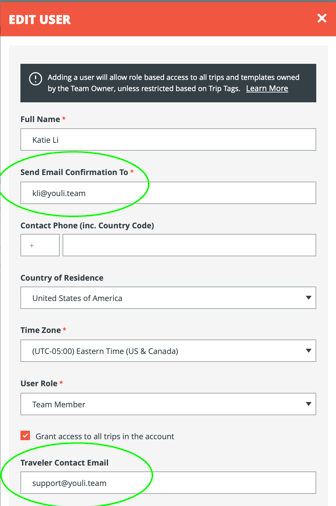
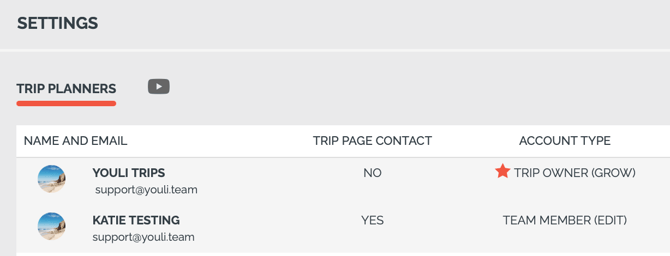
If these are different emails it will show in the Team Member table for quick confirmation of which users are using this feature:

TIP:
-
There's no reason to set this field if it is the same as the
Send Email Confirmation To (Account Login Email)
On the Trips Katie can access, you'll see her Traveler Contact Email shown (support@youli.team). Quite often this will be the same as the Team Owner's email if using that same shared mailbox, but it does not have to be.
In this example, Katie is set as a Trip Page contact:
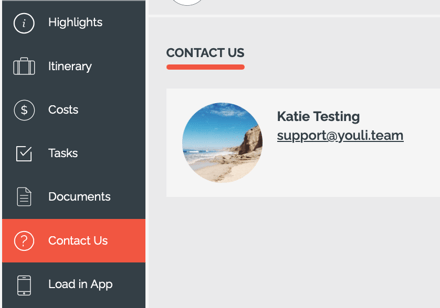
That means on the Trip Page under the CONTACT US tab, her name will show with the Traveler Contact Email
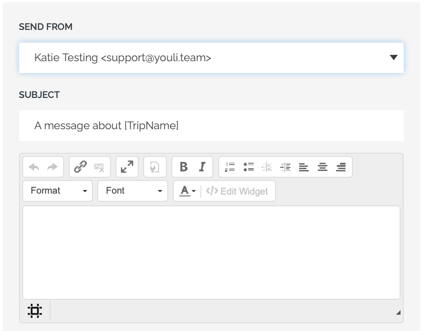
It also means the email address used to SEND FROM will be the Traveler Contact Email
Users can only get to this dialog if they have permission - see who has permission to send from who on a Trip.
In the screenshot below you can see the email used in SEND MESSAGE dialog.
If Traveler Contact Email is NOT set, the email address will be the User's Account Email.
That is why it MUST match the configured White Label Email Sending domain if that feature is enabled.
An error will be shown if it is not the same domain.
📤 Adding a Co-Planner or Trip Coordinator (ie. External User) to a specific Trip
- Go to I'm Planning > Trip Dashboard > Click into a Trip > MANAGE TRIP PLANNERS
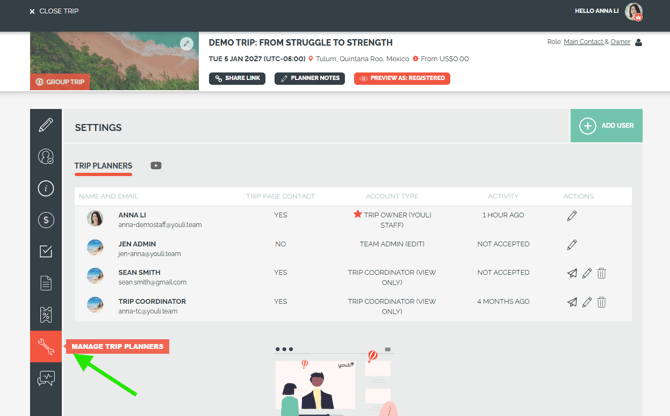
- Click + ADD USER
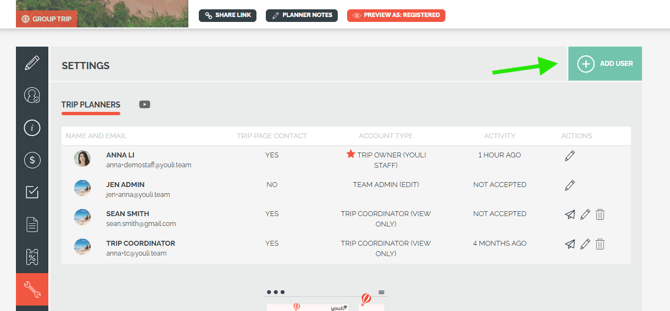
3. Type the email of the person you want to invite
4. Choose a Role 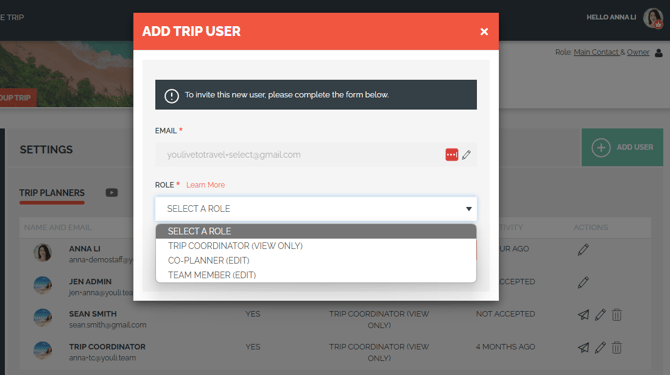
5. If you choose CO-PLANNER: read more about it here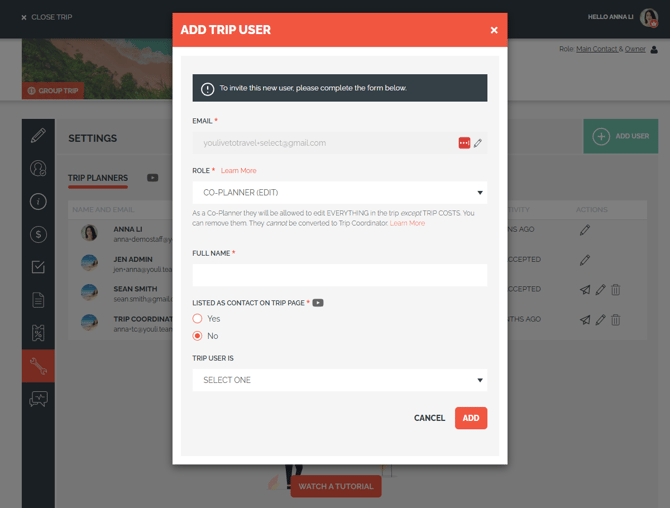
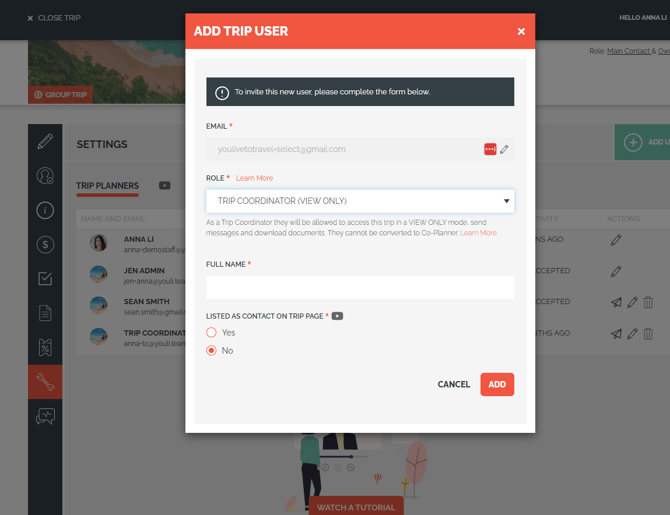
6. If you choose TRIP COORDINATOR, read more about it here
🔧 Troubleshooting
Removing a User from a Trip or Account
- Click the trashcan icon next to their name
- This will not delete their YouLi account, they'll still be able to log in, but won't have access to the TRIPS they were previously on when you had them as a Co-Planner or Team Member
Editing User Details
- Click the pencil icon next to their name to edit their information
Resending Invitations
- Click the paper airline icon next to their name
- This can be done if they haven't accepted the invitation, or they need to reset their YouLi account password
Need more help?
Reach out to the YouLi support team via a chat box at the bottom of your screen or submit a Support Ticket. If you need more advanced support, schedule a 1:1 Consulting session with one of our experts, as we will walk you through the features and best practices.