
This feature is available for Sponsoring clients. Contact Sales to get pricing and express your interest.
Trip Summary
When this feature is enabled, you can see your linked Affiliates per Trip on the TRIP SUMMARY.
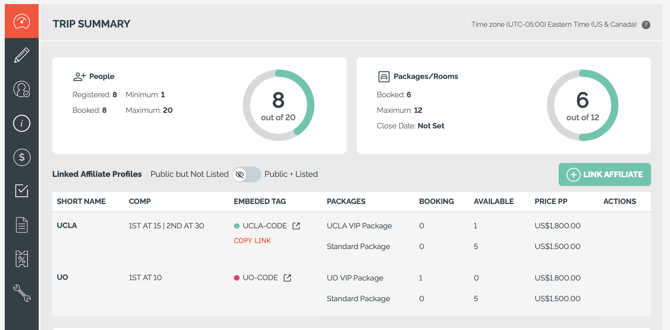
Hover over the EMBED TAG value to see the COPY LINK feature. Share that link with the Affiliate so they can distribute through their channel.
When that linked is used, only the Affiliate's logo will appear on the Checkout Flow header. Then upon booking, the Trip Owner logo will appear with the Affiliate logo (co-branded).
A colored bullet shows next to the Affiliate Profile on the List View of the Trip Dashboard to indicate if that Affiliate is currently tagged so the trips will appear on their websites.
When viewing the linked Affiliate Profiles on Trip Summary, quickly COPY LINK to share the booking link with your partner - or make a booking with that source.
Managing Per Trip Affiliates
- Click LINK AFFILIATE to add an Affiliate to a Trip
- If they are not added, people with that source cannot book onto the trip, they will see a friendly error:
-
"Thank you for your interest in this tour, it cannot be booked with [CODE]. Please email [Trip Owner] to learn about other options."
- You can remove linked Affiliates from the Trip Summary table. Removing the linked affiliate profile will not remove existing bookings but will block new bookings from that Affiliate from being created.
- Can only remove the Affiliate if they do not have packages restricted to them
Affiliate Specific Links (for Travel Insurance)
If you work with partners that have their own links for things like Travel Insurance, you can create a task that uses that link from their Profile, or falls back to a default.