---
title: "How-to: Require \"Consent to Privacy and Terms\" in YouLi When Your Travelers Register"
description: "NOTE: This is recommended for GDPR jurisdictions and those who are concerned with privacy compliance. NOTE: Use these instructions to add, update, or remove Terms & Conditions from your Registration F"
---
[Skip to content](https://support.youli.io/360001218935-how-to-require-consent-to-privacy-and-terms-in-youli-when-your-travelers-register#main-content)
[Open Ticket](https://support.youli.io/kb-tickets/new?hsLang=en) [Customer portal](https://support.youli.io/feature-request-tickets-view?hsLang=en)
[](https://support.youli.io/?hsLang=en)
- [Pricing](https://go.youli.io/pricing)
- [Book Demo](https://go.youli.io/youli-demo-videos)
- [Blog](https://blog.youli.io/)
Open main navigation
Close main navigation
- [Pricing](https://go.youli.io/pricing)
- [Book Demo](https://go.youli.io/youli-demo-videos)
- [Blog](https://blog.youli.io/)
- [Open Ticket](https://support.youli.io/kb-tickets/new)
- [Customer portal](https://support.youli.io/feature-request-tickets-view)
- [Open Ticket](https://support.youli.io/kb-tickets/new)
[Open Ticket](https://support.youli.io/kb-tickets/new?hsLang=en)
How can we help you?
- There are no suggestions because the search field is empty.
1. [Help Center](https://support.youli.io/?hsLang=en)
2. [Get Started](https://support.youli.io/get-started?hsLang=en)
3. [Trip Registration](https://support.youli.io/get-started?hsLang=en#trip-registration)
# How-to: Require "Consent to Privacy and Terms" in YouLi When Your Travelers Register
### First, consider how you want to set up your terms and how they should be consented to
- We suggest you check with your lawyer or legal team for the right language to use for your Terms & Conditions and what type of consent you want to accept
- Depending on your country or legal jurisdiction, you might need
- INFERRED CONSENT - by registering for your TRIP, registrants agree to your terms
- EXPLICIT CONSENT - by checking this box, they agree to your terms and they cannot register if the box is not checked.
**NOTE:** This is recommended for GDPR jurisdictions and those who are concerned with privacy compliance.
### How to ensure you have the right consent, to message & collect information from your Travelers
**NOTE:** Use these instructions to add, update, or remove Terms & Conditions from your Registration Form, whether you are using the standard Registration Form or the Profile & Registration Task.
You can configure your CONSENT TO PRIVACY AND TERMS prompt by finding it under
- From the TRIP MENU \> UPDATE TRIP \> SETTINGS
- By default, CONSENT TO PRIVACY AND TERMS is turned off, but if you click the PENCIL ICON you will be able to ADD/EDIT CONSENT PROMPT
- Here are the 3 options you'll see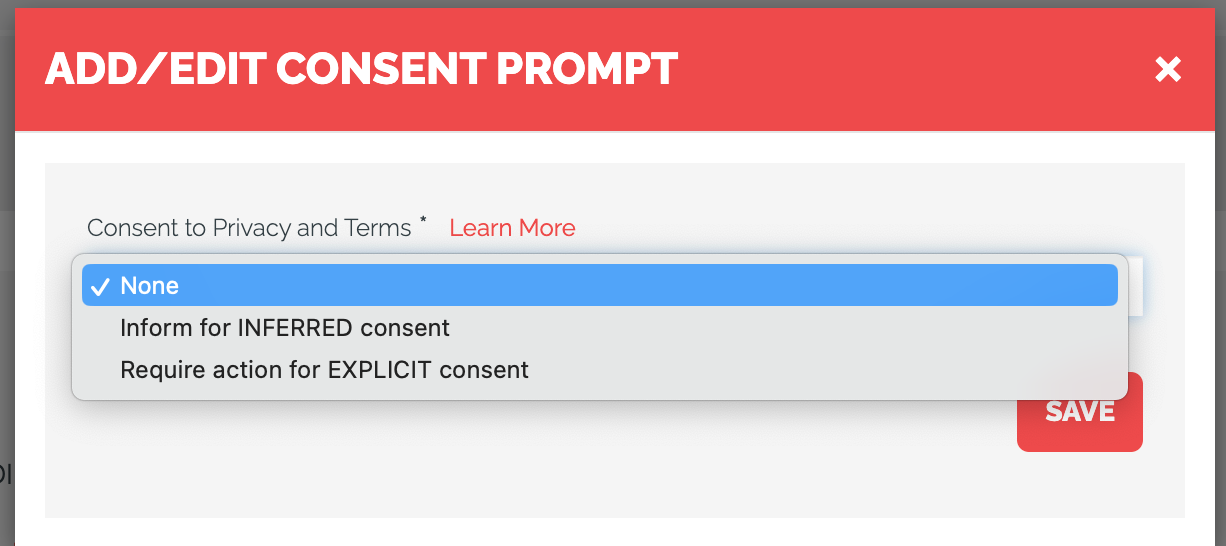
**TIP:** We suggest that you link to your terms & conditions, for a cleaner look in your pop-up (versus copying & pasting them there).
- Choose one of these options (see definitions above)
- Don't forget to click SAVE!
### Watch this 3-minute video tutorial for how to set this up & what it looks like during registration
### What if I have a dispute about the acceptance of my terms?
- When you enable consent, there will be a log of the consent and whether it was inferred or explicit.
- Watch the video to see where it is recorded in YouLi, so you can respond to any dispute with authoritative proof of consent.
### What if I see a checkbox with nothing next to it?
This is likely because you've left the CONSENT sections empty on the price packages -- you can see below that once I've added the text "Anna test 1" it appeared on the trip page:

Click on Manage \> Edit

Then you can see this:

---
### Need more help?
For more tips on pre-trip customer support join the [YouLi community of travel professionals](https://go.youli.io/travel-professional-community) with monthly LIVE webinars and Q&A sessions.
- [Get Started](https://support.youli.io/get-started?hsLang=en#main-content)
- [Checklists](https://support.youli.io/get-started?hsLang=en#checklists)
- [Setting up your account](https://support.youli.io/get-started?hsLang=en#setting-up-your-account)
- [Setting up your Trip Page](https://support.youli.io/get-started?hsLang=en#setting-up-your-trip-page)
- [Video Tutorials](https://support.youli.io/get-started?hsLang=en#video-tutorials)
- [Trip Registration](https://support.youli.io/get-started?hsLang=en#trip-registration)
- [Emails](https://support.youli.io/get-started?hsLang=en#emails)
- [Packages & Installments](https://support.youli.io/get-started?hsLang=en#packages-installments)
- [Payments](https://support.youli.io/get-started?hsLang=en#payments)
- [Adding & Managing People](https://support.youli.io/get-started?hsLang=en#adding-managing-people)
- [Starter Website](https://support.youli.io/get-started?hsLang=en#starter-website)
- [How-To](https://support.youli.io/how-to?hsLang=en#main-content)
- [Technology Partners](https://support.youli.io/how-to?hsLang=en#technology-partners)
- [API](https://support.youli.io/how-to?hsLang=en#api)
- [Reports](https://support.youli.io/how-to?hsLang=en#reports)
- [YouLi Plan Add-ons](https://support.youli.io/how-to?hsLang=en#youli-plan-add-ons)
- [Affiliates](https://support.youli.io/how-to?hsLang=en#affiliates)
- [Payments](https://support.youli.io/how-to?hsLang=en#payments)
- [Video Tutorials](https://support.youli.io/how-to?hsLang=en#video-tutorials)
- [Website Integration](https://support.youli.io/how-to?hsLang=en#website-integration)
- [Mobile App](https://support.youli.io/how-to?hsLang=en#mobile-app)
- [White Label App](https://support.youli.io/how-to?hsLang=en#white-label-app)
- [Account Roles](https://support.youli.io/how-to?hsLang=en#account-roles)
- [Tasks](https://support.youli.io/how-to?hsLang=en#tasks)
- [Packages](https://support.youli.io/how-to?hsLang=en#packages)
- [Highlights, Itinerary & Optional Add-ons](https://support.youli.io/how-to?hsLang=en#highlights-itinerary-optional-add-ons)
- [Invitation Groups](https://support.youli.io/how-to?hsLang=en#invitation-groups)
- [Coupons](https://support.youli.io/how-to?hsLang=en#coupons)
- [Trip Page Menu](https://support.youli.io/how-to?hsLang=en#trip-page-menu)
- [Integrating Cruise Deck Plans](https://support.youli.io/how-to?hsLang=en#integrating-cruise-deck-plans)
- [Managing Trip Dashboard](https://support.youli.io/how-to?hsLang=en#managing-trip-dashboard)
- [Emails](https://support.youli.io/how-to?hsLang=en#emails)
- [Bookings](https://support.youli.io/how-to?hsLang=en#bookings)
- [Managing People](https://support.youli.io/how-to?hsLang=en#managing-people)
- [Registration](https://support.youli.io/how-to?hsLang=en#registration)
- [PDF Confirmation](https://support.youli.io/how-to?hsLang=en#pdf-confirmation)
- [Documents](https://support.youli.io/how-to?hsLang=en#documents)
- [Billing](https://support.youli.io/how-to?hsLang=en#billing)
- [New Features](https://support.youli.io/new-features?hsLang=en#main-content)
- [Recent Releases](https://support.youli.io/new-features?hsLang=en#recent-releases)
- [Past Releases](https://support.youli.io/new-features?hsLang=en#past-releases)
- [Enterprise Clients](https://support.youli.io/enterprise-clients?hsLang=en#main-content)
- [Enterprise Onboarding](https://support.youli.io/enterprise-clients?hsLang=en#enterprise-onboarding)
- [Enterprise-only Features](https://support.youli.io/enterprise-clients?hsLang=en#enterprise-only-features)
- [FAQ](https://support.youli.io/faq?hsLang=en#main-content)
- [Data Security](https://support.youli.io/faq?hsLang=en#data-security)
- [Payments](https://support.youli.io/faq?hsLang=en#payments)
- [YouLi Account](https://support.youli.io/faq?hsLang=en#youli-account)
- [Emails](https://support.youli.io/faq?hsLang=en#emails)
- [Managing People](https://support.youli.io/faq?hsLang=en#managing-people)
- [Packages](https://support.youli.io/faq?hsLang=en#packages)
- [YouLi Subscription Plans](https://support.youli.io/faq?hsLang=en#youli-subscription-plans)
- [Tasks](https://support.youli.io/faq?hsLang=en#tasks)
- [Reporting](https://support.youli.io/reporting?hsLang=en)
- [YouLi User Roles](https://support.youli.io/youli-user-roles?hsLang=en)
- [For Travelers](https://support.youli.io/for-travelers?hsLang=en)
- [Partners](https://support.youli.io/partners?hsLang=en)
- [Upcoming Features](https://support.youli.io/upcoming-features?hsLang=en)
- [Incidents](https://support.youli.io/incidents?hsLang=en)
- [Contact Us](https://support.youli.io/contact-us?hsLang=en)
[](https://go.youli.io)
### Need more help?
Reach out to the YouLi Support team via the **Chat** icon at the bottom-right corner of your screen:
or [submit a Support Ticket.](https://support.youli.io/kb-tickets/new?hsLang=en)
Copyright © 2025, YouLi Travel Pty. Ltd